Earlier we used different types of storage devices such as hard disk, memory, CD, DVD, and pen drive type storage devices as a medium to store any type of files. Which are basically called offline storage services at the current time. As a result of the change in time and the update in technology, now we can store any type of file online which is called an online storage service. And these services are basically called cloud services. Currently, this cloud service is quite popular. Everyone now stores their important files online. Because here you never have to worry about storage format. That means you will never lose your files. As per the title of today's topic, I will discuss how to add popular cloud services to Microsoft Office 2016 version and save Word files in them.
.jpg)
Cloud Services: Nowadays
there are many cloud services But the most popular of these are many types of cloud services including Google Drive, Dropbox, One Drive, and Box. The 2016 version of Microsoft Word includes the One Drive cloud service built-in. As a result, you can save your Word file online on the drive as well as save it on your computer. Note that One Drive is an online cloud service of Microsoft. Because of this, it is integrated with it in a built-in way. Now if you want to add One Drive as well as other popular drives like Google Drive, Dropbox, and Box to Microsoft Word and save your Word files in them then today's topic is for you.
Since Microsoft Office has their cloud services added by default. So we won't look at how to add it anymore. But let's see how to add other popular cloud services. For this, we will see one by one separately from below.
Benefits of Adding Microsoft Office-2016 Cloud Service:
We all know that the Microsoft Office program is one of the best programs for anyone. And so its authorities come up with new services one after another. Which is a cloud service. With this cloud service, you can store your files in the cloud. And you can share these saved files with your colleagues and mail them with just a link. Which is a big advantage of this feature.
Adding Google Drive to Microsoft Office-2016 Version:
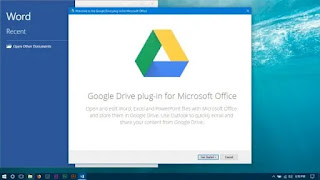
To add Google Drive to Microsoft Office, you need to install the Google Drive plug-in within Microsoft Office Add-ins. for you click here to download the Google Drive plug-in.
After the installer is downloaded, double-click the file and wait for the setup to complete. Note that this is an online installer so you need to have an internet connection on your PC while installing the add-on. Then to activate or activate it, open any of the Microsoft Office programs such as Word, then set up Google Drive as shown in the screenshot above.
After setup, go to the save option of your word and see that Google Drive has been added like the above screenshot. Now you can save your files to Google Drive if you want.
Adding Dropbox to Microsoft Office-2016 Version
: Dropbox is another popular cloud service. You can also save any files of your office programs in it. However, there are no benefits or opportunities directly from Dropbox for Office programs. But if we want we can save office program files through Sync Client. For this, we have to follow the detailed steps below.
First, close all the Office programs. then this is the link download Dropbox Sync Client After downloading install it and sign in with your Dropbox account. Then click on the hidden icon from the computer taskbar, click on Dropbox, click on its settings icon, click on the Preferences button and click on the General tab from here. Then select the text Show Dropbox as a Save location in Microsoft Office and click the Apply button and restart your computer.
If everything is done correctly, this time open any of the Microsoft Office programs and go to its save option and see the Dropbox button as shown in the above screenshot. Now you can save program files to Dropbox if you want.
Adding Box to Microsoft Office-2016 Version
: Like other cloud services, Box is also a popular cloud service. You can also add it to Microsoft Office programs if you want. For this, you need to follow the steps mentioned below.
First, you need to close all Office programs. then this is the linkDownload the box plug-in from After downloading install it.
Once installed you open any office program and go to the save option and see a button named Box has been added just like the above screenshot. Now all you have to do is sign in to the box account on it. This time you can save your files inside the box if you want.
As mentioned, we have discussed three popular online cloud services in detail. You can use other cloud services like this by adding them to the Office program as well. And you can keep your files safe and easily share them with others.